Several transactions in one sentence
Say your expenses and income in one sentence. AI separates the transactions and suggests categories. Review the results and save them together.
Your payments become entries in your budget.
Budget AI takes care of the details.
Free version for iPhone and Android.
Set up automatic tracking on your phone.
No bank login needed
AI picks the category
Your spending, in one place
Choose your payment sources and complete setup. Budget AI will record the expenses automatically.
On iPhone: Apple Pay through Shortcuts. On Android: Google Pay through wallet or bank notifications. Bank SMS and notifications are also supported.
Follow the in-app setup: Shortcuts on iPhone or notification access on Android.
Budget AI reads the payment and records the amount, category and account.
AI suggests a category from the payment details. With remembering enabled, confirmed choices link merchants to categories and cards to accounts for future transactions.
Add custom categories, subcategories and instructions for AI recognition.
On iPhone: Apple Pay and SMS from iOS 17; app notifications from iOS 27. On Android, choose your bank apps and allow Budget AI notification access and background activity. AI processing requires consent and an internet connection.
APP FEATURES
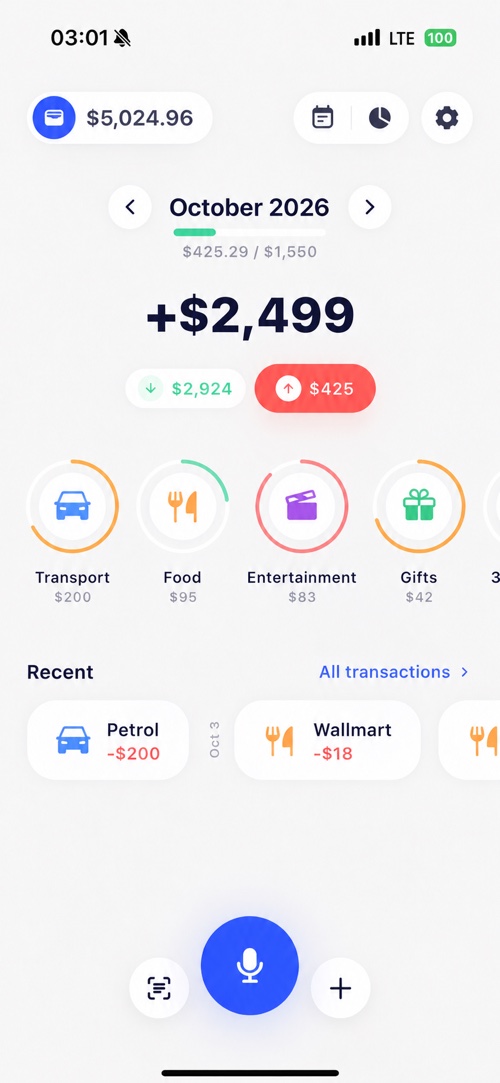
Add income and expenses by voice, receipt scan or manual entry. Plan your budget and review spending by category.
Say your expenses and income in one sentence. AI separates the transactions and suggests categories. Review the results and save them together.
Snap a receipt, share a payment screenshot or upload a bank statement. AI extracts transactions and suggests categories, so you can review amounts, dates and accounts before adding them to your budget.
Create multiple budgets: individual limits for key categories and a shared amount for the rest. Track what is left, plan future months and start your financial month on payday.
Income and expense charts, reports and a transaction calendar. Filter accounts, categories and subcategories, exclude what you don’t need and include planned payments in your balance forecast.
Keep cash, cards and savings in separate accounts, including cryptocurrency accounts. Organize them into groups, record transfers and see your total balance in your preferred currency.
Set a target amount and link your savings accounts. Progress follows their balances. Add a deadline to see how much to save each month or week.
WIDGETS
See income, expenses and the difference for your financial month on iPhone and Android. Launch voice input and the scanner from your Home Screen; widgets follow your app theme and hidden-balance setting.
Turn them on in settings if you want to keep a copy of your data in the cloud.
Data stays on your device. Protect it with a PIN or biometrics.
Schedule rent, subscriptions, salary and other recurring entries.
Add entries from scripts, bots and Shortcuts through the API. Documentation →
The same transactions, accounts, categories, budgets and goals on your iPhone, iPad and Android through your iCloud or Google Drive. Works offline; included in Premium.
Ask about your spending, budgets, goals and upcoming payments inside the app. Chats stay on your device. Included in Premium.
USE YOUR OWN AI
Export your data as CSV and attach it to a chat. Compare monthly spending, find recurring payments and ask questions about your data. Export from Analytics or Budget AI settings.
BUDGETING TIPS
Track spending for at least a week, including small purchases. See which categories take up the biggest part of your budget.
Separate rent, bills and subscriptions. Allow for those expenses before setting limits for everyday purchases.
Compare spending with your plan, check categories and adjust limits for the next period.
BUILDING WHAT’S NEXT
These features are in development and are not available yet.
Joint budgeting with shared accounts for family and partners.
Advanced plans that account for future income, payments and goals.
On iPhone, Shortcuts automations pass Apple Pay, SMS or notification details to Budget AI. On Android, the app receives notifications from your chosen banks and wallets after you enable access. AI recognizes the payment and assigns a category and account. No bank login is needed.
On iPhone, set up an Apple Pay automation in Shortcuts. On Android, choose Google Wallet or your bank app as a notification source. The notification must include the amount and purchase details. If your wallet does not provide them, use bank notifications. Choose one source per payment to avoid duplicates. Set up Google Pay tracking on Android.
AI uses payment details to suggest a category, and you can correct the result. When remembering is enabled, confirmed merchant categories and card-to-account matches are saved for future transactions. You can also set custom category rules for voice and image recognition.
Open Automatic tracking in Budget AI settings, allow notification access and choose your bank or wallet apps. AI extracts the payment details and assigns a category and account, while the app saves the transaction in the background. Each source can have keyword and notification-title filters and a preset account. Follow the Android setup guide.
Yes. Say something like “Lunch $15, taxi $8 and $500 for a project.” AI separates income and expenses and suggests categories. Review amounts, dates and accounts in one screen, then confirm the entries together. You can also edit the recognized text.
Yes. Upload a bank statement as a PDF, CSV or TXT file, or share images and screenshots of transactions. The scanner also reads receipt photos. AI extracts transactions and suggests categories; review amounts, dates and accounts before saving. Supported file sizes and other limits are shown in the app.
On supported iPhones, connect Budget AI shortcuts to Siri, the Action button or Back Tap. You can also send text, images and supported documents from other apps through Share. On Android, Budget AI links can start voice input, open the scanner or open a new transaction form from Tasker and MacroDroid.
To analyze spending, export your data as CSV and attach the file to a chat with ChatGPT, Claude or another AI. Export from settings or tap Share in Analytics. Follow the data analysis guide.
To add transactions, set up a workflow that extracts payment fields with your AI and sends them to Budget AI through Shortcuts on iPhone or Tasker, MacroDroid and app links on Android.
Check the queue, AI consent and filters. On Android, diagnostics show notification access and recent background runs; check battery restrictions too. Android retries queued payments when connectivity returns. On iPhone, check your Shortcuts automation and open Budget AI to retry queued payments.
Yes. Automatic tracking has its own AI category rules and editable mappings from merchants to categories and subcategories, and from cards to accounts. In a custom Android workflow, pass the desired category, subcategory and account directly in the link.
Yes. In Automatic tracking settings, turn off Notifications (“Tell me about every logged payment”). Transactions will still be added. Errors and waiting payments are still reported, and Notify about every run, if enabled, still shows every result.
Budget AI is an AI expense tracker, income tracker and personal budget planner for iPhone and Android. Use it for everyday purchases, cash, salary, subscriptions and accounts in multiple currencies. Log transactions automatically on iPhone and Android, by voice, receipt scan, text or manual entry.
See income, expenses and the difference for your financial month on iPhone and Android. Launch voice input and the scanner from your Home Screen; widgets follow your app theme and hidden-balance setting. On iPhone, widgets require iOS 17 or later, including Lock Screen input widgets; iOS 18+ adds controls for Control Center and the Action button.
Yes. Choose the starting day of your financial month. Create multiple budgets with their own categories and currency: set individual limits and let other categories share the remaining amount. Overspending reduces what is left. Review past results and plan months up to two years ahead.
Yes. Open Budgets & goals, set a target amount and link your savings accounts. Progress follows their balances; accounts in other currencies are converted to the goal’s currency.
Add a deadline to see how much to save each month or week, along with a forecast based on your recent saving pace.
Create repeating transactions for rent, subscriptions, salary and other regular payments. Planned transactions appear in the calendar and can be included in your balance forecast. Recurring transactions are a Premium feature. When confirming a recognized transaction, you can link it to an existing recurring payment to mark that occurrence as paid and remove its pending duplicate.
Yes. Create separate accounts for cash, cards and savings in different currencies, including cryptocurrencies. Group accounts, record transfers separately and view your total balance in your chosen currency.
Explore category breakdowns, income and expense charts and reports for your chosen period. Filter by account, category or subcategory to focus on specific spending or exclude it. Open individual entries in your transaction history and calendar.
Yes. You can set the date and time when creating or editing a transaction.
Upload a CSV file and match columns for dates, amounts, accounts and categories. Review entries and possible duplicates before importing. Make a backup first. PDF bank statements can also be processed with the AI scanner.
Yes. Open Export to CSV in settings and choose dates, accounts and categories. Or set your filters in Analytics and tap Share to export the matching transactions. Open the CSV in a spreadsheet or send it to your AI for analysis. A backup file lets you restore your data in Budget AI on another device.
You can start without signing up or connecting a bank. Accounts, categories and transactions are stored on your device. If you enable cloud backups or sync across devices, the data are also kept in your own iCloud or Google Drive account, where your devices exchange them; Budget AI’s servers do not receive them. Transactions sent through the API arrive via a server. AI features send the text, images or documents needed for recognition to processing services and require an internet connection. Optional PIN or biometric locking protects access to the app. Read the privacy policy.
You can try Budget AI for free without starting a trial or subscribing. The free version has limits on accounts, categories, subcategories, active savings goals and AI usage.
Premium removes the limits on accounts, categories and subcategories and adds recurring transactions, full Analytics with filters, AI category rules, app lock, CSV export, automatic cloud backups, the AI chat, sync across devices (beta), more than two active savings goals and the Transaction API.
Eligible offers include a free Premium trial. Availability, duration and the price afterward are shown in the app before you subscribe. After the trial, the subscription automatically renews at the displayed price unless you cancel.
Yes. The built-in AI chat answers questions about your spending and income, categories, accounts, budgets, goals and upcoming payments, and prepares monthly tips. It asks for your consent before sending data for processing; chats are stored on your device.
Sync across devices is available in beta with Premium. Turn it on in Settings → Sync and choose a cloud: iCloud for iPhone and iPad on one Apple ID, or Google Drive for one Google account on iPhone and Android. Transactions, recurring transactions, accounts and groups, categories, budgets and goals stay the same on every device; changes made offline are merged automatically. The second device chooses whether to take the data from the cloud or replace them with its own, and a backup is made first. Settings, card names for automatic tracking and AI chats stay on each device. Advanced budget planning is still in development.
Open Backup in settings and choose storage: iCloud Drive or Google Drive on iPhone, or Google Drive in the Android version from Google Play. Copies are saved in the Budget AI folder in your cloud account. The RuStore version supports file backups.
Backups are optional: turn them on if you want to keep a copy of your data in the cloud and restore it when needed. Sync across devices (beta) is a separate feature: it uses the same cloud and account, and turning it on also enables automatic backups there.
Yes, through the API. Open Advanced → API in settings, generate a key and choose when it expires. The page includes a request example, builder and current limits.
Send prepared transaction fields: amount, currency, type, category and account. This mode does not use AI tokens. Budget AI downloads incoming transactions; you can also tap Sync now on the API page to fetch them. Request format and examples.
On Android, Tasker, MacroDroid and similar apps can also log transactions in the background without opening Budget AI: turn on “Logging from other apps” under Automation links in settings and send a broadcast with the amount and optional fields. See the Android workflow guide.

BUDGET AI FOR IPHONE AND ANDROID
Try Budget AI for free. No sign-up, subscription or trial required.
A free Premium trial is available with eligible offers; see the app for terms.
Set up automatic tracking on your iPhone or Android phone.