Before you start
- Budget AI installed and opened.
- Consent to AI processing and an internet connection.
- Shortcuts installed; allow Budget AI notifications to see processing results.
Step by step
Add the Budget AI shortcut
Open the link on your iPhone. On the “BudgetAI Track Apple Pay” screen, tap Add. The shortcut will appear in Shortcuts.
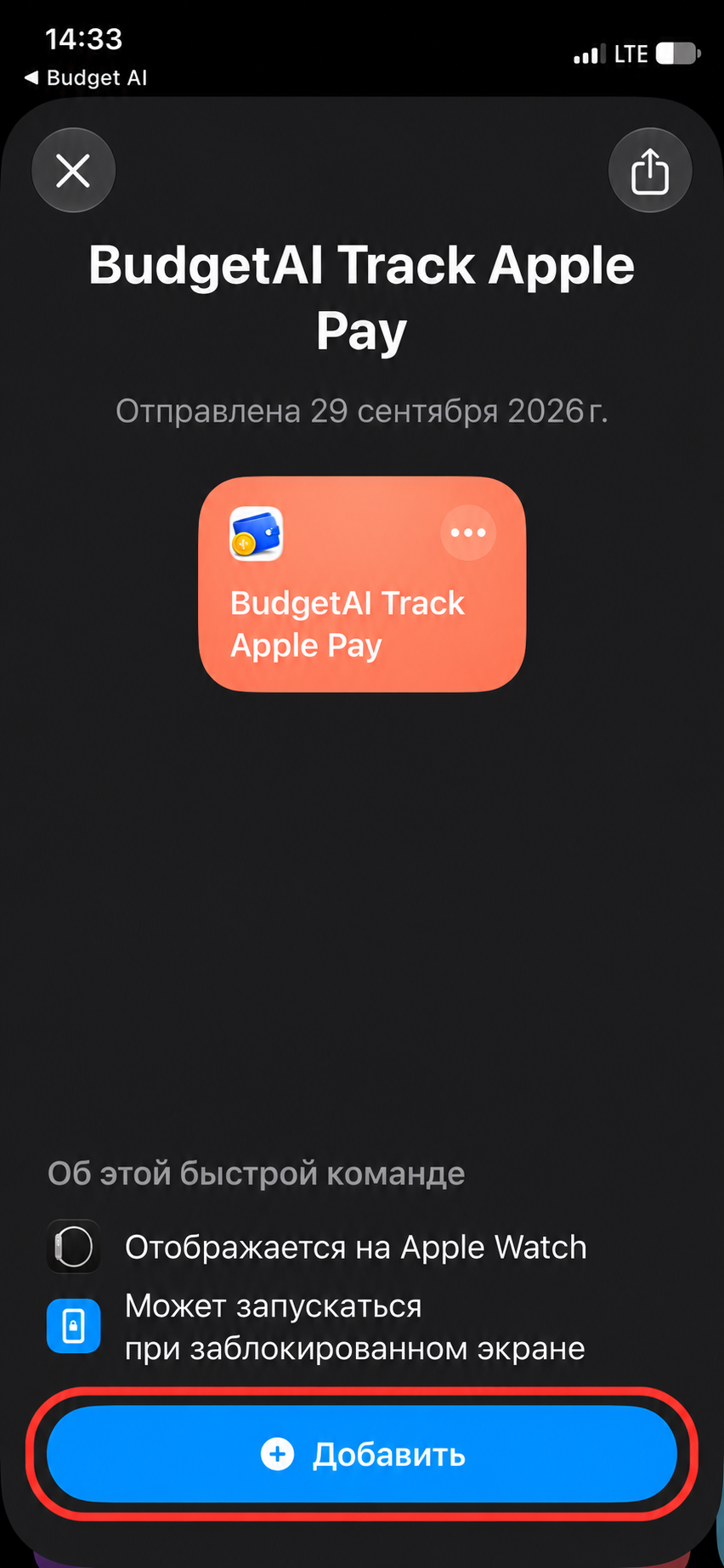
Adding the BudgetAI Track Apple Pay shortcut · Russian interface Check the automation settings
Open the added shortcut in the editor. In the Wallet trigger at the top, make sure Automation is enabled.
Keep Any Card to track all cards, or select specific ones.
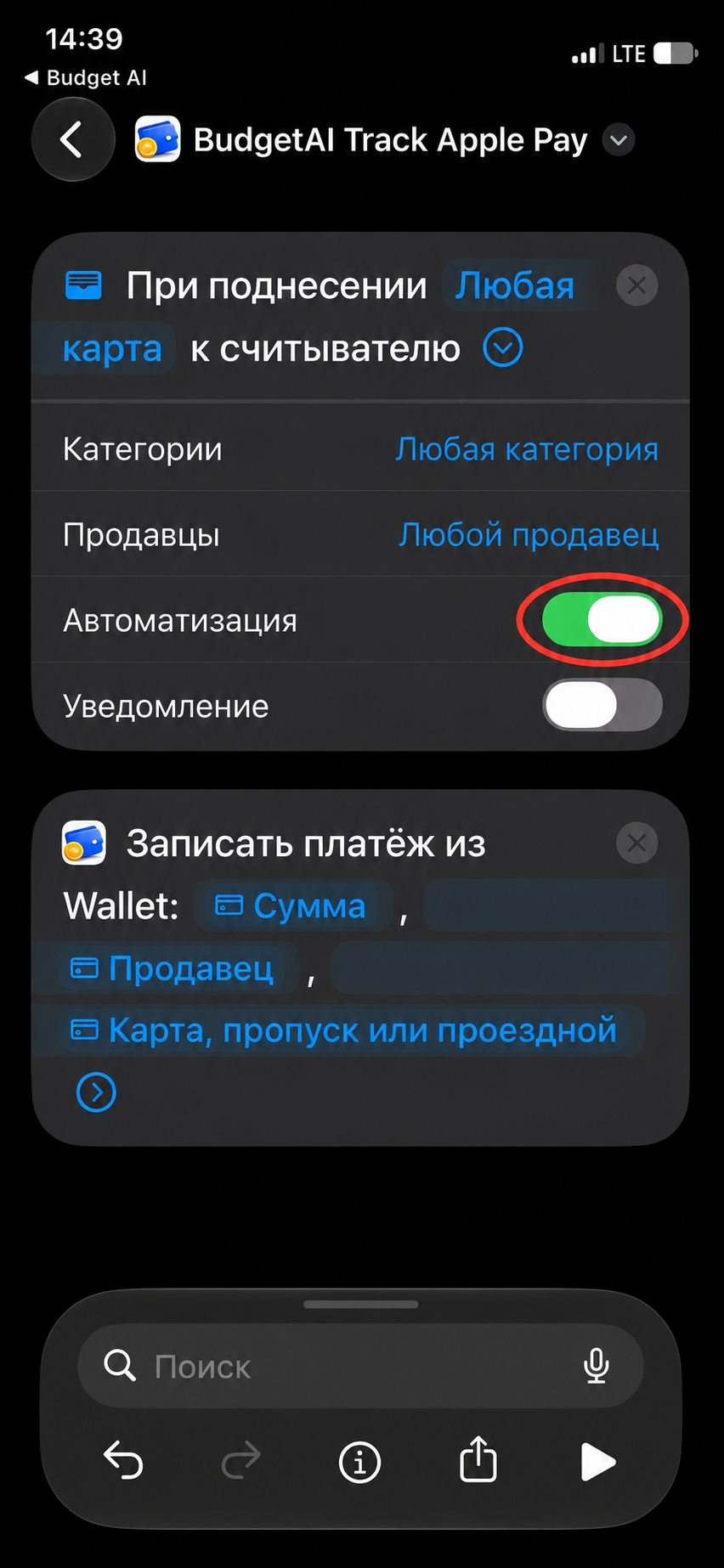
Automation enabled with the amount, merchant and card passed to Budget AI · Russian interface Allow the first run
Run the shortcut once using the ▶ button. When iOS asks whether the shortcut may run Budget AI actions, tap Allow.
After you allow access, Budget AI shows the “Budget AI is connected” notification. The shortcut is ready to use. Check a real purchase in the next step.

Allow the shortcut to run Budget AI actions · Russian interface 
“Budget AI is connected” notification after the first run · Russian interface Check a payment
Make an Apple Pay purchase with a card selected in step 2. The purchase must match any category and merchant filters you configured.
If Notifications are on in Automatic tracking settings, Budget AI shows a “Logged” notification when the transaction is recorded. Open the app and check the amount, category and account. Use one automation for each purchase to avoid duplicates.
In Budget AI settings, open Automatic tracking to configure stop words, category rules and card-to-account mappings. See the categories and filters guide for details.
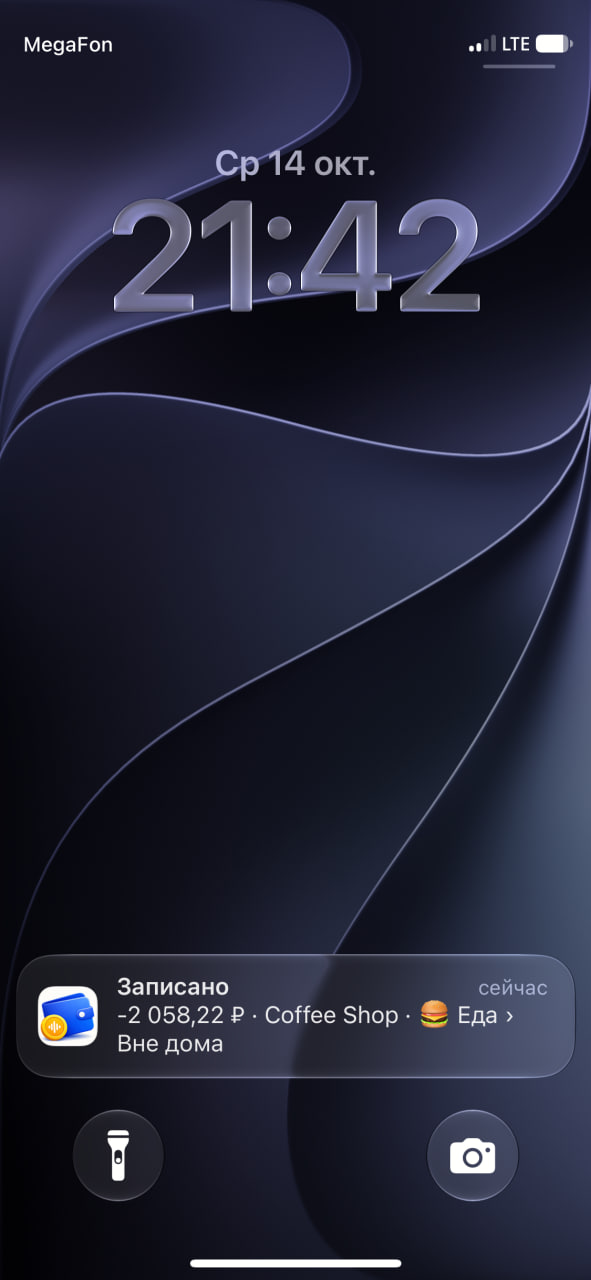
Budget AI notification confirming the Apple Pay purchase was recorded · Russian interface
Useful details
Set up manually
Tap + in Shortcuts. Under Add Action, open Automation and choose Wallet. Configure the source as in step 2, then add the Budget AI Track Apple Pay action.
Map Amount, Merchant and Card from the Transaction variable to the matching fields. Leave category and account empty to use remembered choices or AI suggestions.
Video walkthrough
For now, follow the complete written steps above.